Showing posts with label Social Media. Show all posts
0
[postlink]https://iamdaowner.blogspot.com/2012/06/magento-get-skin-url-get-media-url-get.html[/postlink]Magento Mage Core, Admin Static Blocks, or Phtml edits are usually includes getting url path such images, javascript, base url, media and store url. There are different ways to retrieve mentioned URL paths depending on where section you’re editing.

To Retrieve URL path in STATIC BLOCK

To get SKIN URL
{{skin url='images/sampleimage.jpg '}}
To get Media URL
{{media url='/sampleimage.jpg'}}
To get Store URL
{{store url='mypage.html'}}
To get Base URL
{{base url='yourstore/mypage.html'}}

TO Retrieve URL path in PHTML

Note: In editing PHTML don't forget to enclode the following code with PHP tag
Not secure Skin URL:
<?php echo $this->getSkinUrl('images/sampleimage.jpg') ?>
Secure Skin URL
<?php echo $this->getSkinUrl('images/ sampleimage.gif', array('_secure'=>true)) ?>
Get  Current URL
$current_url = Mage::helper('core/url')->getCurrentUrl();
Get Home URL
$home_url = Mage::helper('core/url')->getHomeUrl();
Get Magento Media Url
Mage::getBaseUrl(Mage_Core_Model_Store::URL_TYPE_LINK);

Get Magento Media Url

Mage::getBaseUrl(Mage_Core_Model_Store::URL_TYPE_MEDIA);
Get Magento Skin Url
Mage::getBaseUrl(Mage_Core_Model_Store::URL_TYPE_SKIN);
Get Magento Store Url
Mage::getBaseUrl(Mage_Core_Model_Store::URL_TYPE_WEB);
Get Magento Js Url

Mage::getBaseUrl(Mage_Core_Model_Store::URL_TYPE_JS);

MAGENTO: GET SKIN URL, GET MEDIA URL, GET BASE URL, GET STORE URL

0
[postlink]https://iamdaowner.blogspot.com/2012/06/how-to-unsubscribe-from-someone-on.html[/postlink]
Few days ago Facebook launched the subscribe feature for the Facebook ProfilesSubscribe features allows anyone to subscribe to public posts of any other user on Facebook, provided they have enabled the ‘Subscribe‘ on their profile.
Good thing about this new feature is that you need not to be friend with someone to see their public updates. When Facebook launched this feature, it was believed to be Facebook’s answer to Google+ Follow. Now available for every Facebook profile, even your friends have become your subscribers automatically and you have become theirs. If you start subscribing to hundreds of users than your News Feed might get filled with updates from the people you have subscribed to. It could also be possible that you might not want to receive updates from anyone then you can simply Unsubscribe from them on Facebook.

Why you might Unsubscribe from Someone on Facebook?

  1. News Feed jam packed with updates from user updates
  2. No longer interested in receiving updates from an user
If you plan to unsubscribe from someone due to jam packed news feed, than you might want to change the subscription settings and allow only few important updates from the user. We will discuss it below in ‘Managing Updates you are Subscribed To’.

How to Unsubscribe from Someone on Facebook

There are 2 ways by which you can unsubscribe from someone on Facebook i.e either directly from the post on news feed or by visiting their Profile/Timeline.
Unsubscribe directly from the post: When you see a post from someone you want to unsubscribe from, you can click on the post options button on the right corner of the post on your News Feed and click ‘Unsubscribe’.
unsubscribe on facebook via post

Unsubscribe from Someone Via their Profile: You can also unsubscribe from someone by visiting their Profile [Timeline] and then clicking on ‘Subscribed’ button and then click on ‘Unsubscribe’.
unsubscribe via timeline
After you’ve unsubscribed from someone, the Subscribe button on their profile will be enabled again and you can subscribe to them anytime in the future.

Managing Updates you are Subscribed To

Besides unsubscribing you can also manage the type of updates you receive from the user and can only get the important updates from the user. You can choose what kind of updates you want to get from the user. As shown in above image, here are the few options that can be managed to get selective updates.
  • Life Events
  • Status Updates
  • Photos
  • Games
  • Comments and Likes
  • Other Activity
  • Music and Video
You may select whatever updates you may like, however our Recommended settings for anyone you are not friends with, is to choose only Life Events & Status Updates. For your Friends you can let the updates settings as it is so that you can get to know everything that’s happening in your Friend’s life on Facebook.


Read more: http://www.survivalguide4idiots.com/how-to-unsubscribe-from-someone-on-facebook.html#ixzz1yx9k5hBu

How to Unsubscribe from Someone on Facebook

0
[postlink]https://iamdaowner.blogspot.com/2012/06/is-facebook-auto-subscribing-people-to.html[/postlink]
As you’ve probably heard by now, yesterday, among several other new features, Facebook launched the new and cool “Subscribe” option. This is great for people who have more than 5,000 friends or want to let people who aren’t their friends read what they post on Facebook. The obvious comparison is Twitter, where anyone can follow you and your Tweets (unless you’ve set your account to private) and they don’t need to request to follow you or be your friend. Up until now, the only way anyone could see your status updates in their Facebook news feed was to request to be a friend and for you to accept. Now, however, you have the option to add the “Subscribe” feature to your profile page and let anyone who subscribes read what you post.
Yesterday I activated the Subscribe button for my profile page and gained some subscribers right away but so far I haven’t subscribed to anyone myself. So, imagine my surprise this morning when I checked my Facebook news feed and saw a (1) next to “Subscriptions” in my tab links. Obviously I was curious to see who I’d subscribed to while I was apparently sleep walking last night so I clicked the link and found that for some reason, out of all the interesting people on Facebook I could have subscribed to, I had subscribed to Chad Hurley, the CEO of Delicious.
Now, I don’t have anything against Mr. Hurley and I’m sure he’s quite fascinating, but until this morning, I have never visited his Facebook profile page and I know for a fact I never Subscribed to him. So, how did this happen? The only conclusion I can make is that Facebook is auto subscribing us to people. I reported this on my profile this morning and heard from two people who say they had been auto subscribed to Robert Scoble and others to Mark Zuckerberg. Frankly, Mark Zuckerberg makes sense, sort of the way new members of MySpace automatically got Tom Anderson as their first friend, but Robert Scoble?
Twitter and Google+ both have “suggested followers” lists of popular and famous people which helps new members jump start their accounts, but has Facebook actually taken that concept to a new level and rather than just suggesting people to subscribe to, will be subscribing us automatically? It sure looks that way. Apparently their tactic of turning things on by default and expecting us to opt-out rather than giving us the choice and letting us opt-in — similar to the way anyone can add you to a group — is being applied to Subscriptions and we’ll suddenly start seeing updates from people we don’t know in our News Feeds and we’ll have to unsubscribe from the ones we don’t want to hear from.

Is Facebook Auto Subscribing People to Popular Profiles?

1
[postlink]https://iamdaowner.blogspot.com/2012/06/add-facebook-comments-box-to-blogger.html[/postlink]
UPDATES: 

1. If you wish to completely hide the blogger comments form then read Replace Blogger comments form With Facebook

2. Show both Facebook and Blogger Comments inside Tabs!  

facebook-comments-boxIn 2009 Facebook developers introduced their best social plugin called "Facebook Comments Box". This plugin can be embedded in any website or blog and visitors can use their IDs of Facebook, Yahoo, AOL or Hotmail to leave a comment at your site. This plugin did show a lot of problems when it was embedded in Blogger Blogs in initial days of its development but now thanks to our fellow friend Max from Allblogtools this plugin has been finally bloggerized to work just perfect with any Blogger hosted blogs. I have edited Max's coding in some areas and have mentioned some more interesting options that will help you use the Facebook comments box in parallel to your old Blogger Comment form so that you may loose no previous comments and provide users with multiple options of commenting from different platforms.


Live Demo

This is how the Facebook Comments box looks like,
LIGHT SCHEME
facebook-commentS-box LIGHT
DARK SCHEME
Facebook-comments-dark-scheme

Interesting? Lets now learn how to embed this extremely useful comment form in Blogspot blogs. Kindly follow the simple steps below,

1- Get a Facebook Application ID

  1. Go To Facebook Developers Page
  2. Submit your blog URL and give it a name. Keep Site name as your "Blog Title" and Site URL as your "blog address"
site-url
     3.   Hit "create app" button and proceed
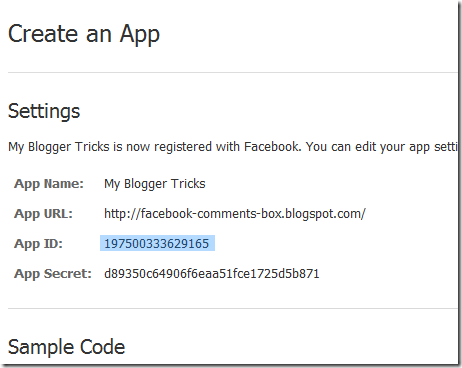
     4.   After submitting the security check code you will see this page,
app-id
       5.   Save that App ID in a notepad because we will need that latter. Now Click the link near the top-right corner of the same page that says "Developer Dashboard
image
      6.  One the new window that appears click the Edit Settings link ,
edit-settings
        7.  Then go to Website option and write your Site Domain as blogspot
website
       8.  Save Changes and jump to the next step of this tutorial

2- Adding the Facebook comments Box to Blogger

Now its time to do embed the comments box in your blog templates. So follow these easy steps,
PS: Please make sure your blogger comment form is embedded below posts. For doing this first go to Blogger > Settings > comments > and then choose embed comments below posts. After doing this follow the tutorial below.
  1. Go To Blogger > Design > Edit HTML
  2. Backup your template
  3. Check the "Expand Widget Templates" box
  4. Search for <html and just after it give a space and add this code,
xmlns:fb='http://www.facebook.com/2008/fbml'
  5.  Next search for 
<body>
Note: In New Blogger Designed templates the same code looks like this,
<body expr:class='&quot;loading&quot; + data:blog.mobileClass'>
Find any one of these codes and just after it paste the code given below,
<div id='fb-root'/>
<script>
    window.fbAsyncInit = function() {
    FB.init({
      appId  : &#39;YOUR_APP_ID&#39;,
      status : true, // check login status
        cookie : true, // enable cookies to allow the server to access the   session
      xfbml  : true  // parse XFBML
    });
  };
    (function() {
    var e = document.createElement(&#39;script&#39;);
      e.src = document.location.protocol +   &#39;//connect.facebook.net/en_US/all.js&#39;;
    e.async = true;
      document.getElementById(&#39;fb-root&#39;).appendChild(e);
    }());
</script>


  • Replace YOUR_APP_ID with your Facebook application ID that you saved in a notepad.
    6.    Next search for  </head> and just above it paste the following code,
<meta expr:content='data:blog.pageTitle' property='og:title'/>
<meta expr:content='data:blog.url' property='og:url'/>
<meta content='MY Blogger Tricks' property='og:site_name'/>
<meta content='BLOG-LOGO-IMAGE-LINK' property='og:image'/>
<meta content='YOUR_APP_ID ' property='fb:app_id'/>
<meta content='http://www.facebook.com/mybloggertricks' property='fb:admins'/>
<meta content='article' property='og:type'/>


Make these changes:
  • Replace MY Blogger Tricks with your blog title/Name.
  • Replace BLOG-LOGO-IMAGE-LINK with the image link of your logo. Your logo will look good if it is in gif format and having this size ->  40px by 40px . This logo will appear next to your post title on Facebook profiles of your visitors like this,
logo
  • Replace YOUR_APP_ID  with the your Facebook Application ID that you saved in notepad
  • Replace http://www.facebook.com/mybloggertricks with your Facebook user profile link
    7.    Now Search for this,
<b:includable id='comment-form' var='post'>
    8.    Just after it paste the code given below,
<b:if cond='data:blog.pageType == &quot;item&quot;'>
<div style='padding:0px 0px 0px 0px; margin:0px 0px 0px 0px;'><script src='http://connect.facebook.net/en_US/all.js#xfbml=1'/>
<div> <fb:comments  colorscheme='light' expr:href='data:post.url' expr:title='data:post.title' expr:xid='data:post.id' width='520'/></div>
<div style='color:#fff; background-color:#3B5998;border: solid 1px #ddd; font-size:10px; padding:3px; width:510px;'>Facebook Blogger Plugin: Bloggerized by <b><a alt='blogger templates' href='http://www.allblogtools.com/' style='text-decoration:underline; color:#fff;' target='_blank' title='blogger templates'>AllBlogTools.com</a></b> Enhanced by <b><a alt='blogger widgets' href='http://www.mybloggertricks.com/' style='text-decoration:underline; color:#fff;' target='_blank' title='Blogger Widgets'>MyBloggerTricks.com</a></b></div></div>
</b:if>
  • If you want to use the dark scheme then simply replace light with dark
  • To change the Comments box size, change this value width='520'
  • To change the footer credits size, change this value width:510px
  • Keep a difference of 10 pixels between the box size and footer size. For example if you set box-size to width='600' then set footer-size to width:590px

      9. Save your template and Bingo you are Done! See your blogs to find a beautiful comment box waiting to be touched. =)

Respect Copyright

This plugin contains credits to allblogtools and MBT blog for the efforts put by us in facilitating blogger users with this great commenting plugin. We therefore request you to please do not remove the footer credits. The credits are attached to the plugin in a design style that it perfectly blends the colour themes of Facebook Comments Box. We only need this favour in return.

Need More Fun?

If you want to further play with codes and wish to give a Facebook style (i.e font colours, background colors, background image) to your old blogger comments form then read the post below,

Troubleshooting

If you faced any problem then kindly do not hesitate to let me know. It would be a pleasure to be at your service. I will write more tutorials on this topic this week so that you may get all the latest updates. I hope this plugin proves useful to most of you and it may bless your blogs with even more organic traffic. Peace! :>

Add Facebook Comments Box To Blogger Blogs - New!

0
[postlink]https://iamdaowner.blogspot.com/2012/06/can-undo-facebook-timeline-know-why.html[/postlink]
UNDO REMOVE TIMELINE
After 6th December, Facebook Timeline has completely transformed the shape of old FB profiles. Some users are finding the new layout pretty complicated and unfamiliar. Whether it may be new advanced privacy settings or the new profile design, Facebook new changes are always somewhat not unanimously accepted by the 800 Million registered users.  The new Timeline design display all your posts in hierarchal way, giving more importance to your memorable posts, photos and events.
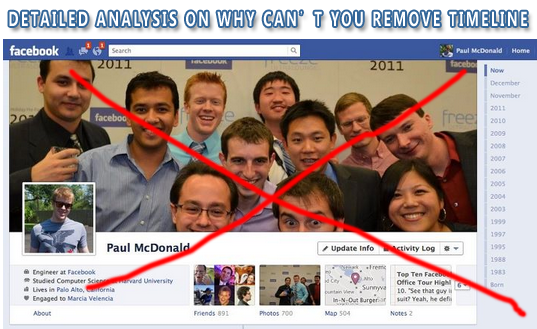
There appears to be no option which could remove timeline or undo the new profile design change so that you could revert back to the old profile layout. No method so far seems to work, neither disabling the timeline app  is working. The Timeline App was a method by which you could set up timeline before its launch. There must be reasons behind absence of timeline Removal option. Lets analyze some facts.
Zukerberg Recently blogged about his commitment to Facebook community Saying:
I founded Facebook on the idea that people want to share and connect with people in their lives, but to do this everyone needs complete control over who they share with at all times.
This idea has been the core of Facebook since day one. When I built the first version of Facebook, almost nobody I knew wanted a public page on the internet. That seemed scary. But as long as they could make their page private, they felt safe sharing with their friends online. Control was key. With Facebook, for the first time, people had the tools they needed to do this. That's how Facebook became the world's biggest community online.  We made it easy for people to feel comfortable sharing things about their real lives.
We've added many new tools since then: sharing photos, creating groups, commenting on and liking your friends' posts and recently even listening to music or watching videos together. With each new tool, we've added new privacy controls to ensure that you continue to have complete control over who sees everything you share. Because of these tools and controls, most people share many more things today than they did a few years ago.
Overall, I think we have a good history of providing transparency and control over who can see your information.
That said, I'm the first to admit that we've made a bunch of mistakes. In particular, I think that a small number of high profile mistakes, like Beacon four years ago and poor execution as we transitioned our privacy model two years ago, have often overshadowed much of the good work we've done.

The highlighted words are where Mark himself accepts some of his past mistakes. Beacon was Facebook's advertisement system that sent data from external websites to Facebook, for the purpose of allowing targeted ads and allowing users to share their activities with their friends. The controversial part was that Facebook was publishing User activities from other websites without explicit permission from the user. This was a complete violation of user privacy. All this was done without letting you know!
The purpose of sharing the Beacon story is to tell you that Facebook have often taken decisions without keeping user feedback greatly in mind. Now when the entire Layout was going to be transformed, no proper Feedback campaign was ran which could ask users about their likes and dislikes concerned with the new timeline Design. Yes they tested a beta version of timeline and allowed users to try timeline in advance but why not User Feedback again?
Mark promised on November with his blog post that user response will be given great importance but I never get it why the same mistake is repeated again?
Now lets know the reasons that why can't your remove, undo or delete the timeline view.

1.To Prevent Algorithm Conflict

Things look simple when they look alike. In order to prevent development ambiguity/complexity, all layouts are given same design structure so that it becomes easy to organize the data using the same technique without the need of two different methods for the display and arrangement of the same data on Facebook servers.

2. To Prevent Psychological Confusion

If the option of removing Timeline existed then it would have given rise to great confusion in interface. Facebook users are of different age and are experimented to like simplicity in design and structure. If your friend is running a timeLine and you are running Old Profile, then of course you will find it difficult to understand the updates at his profile due to different organization of data. What is placed at your left is shifted to top and right on timeline. This can discourage users from using Facebook and then can probably look for an alternative simple social media network like Google+.

3. A Challenge to Google+

Google Plus is the new social networking website which was launched just this July by Google Inc. Almost all features in Google+  match that of Facebook accept the introduction ofSparks, Circles and video conferencing. In order to tell its users that Facebook offers much different social touch a step like this was important. I must inform you that Facebook knew about the Google+ development and all its features much before it was launched. Because keeping an eye on your competitor is an important principle of i-marketing.

What do you think?

In short it is hard to believe but once again the new look has been forced upon the users without keeping the community likes and dislikes in Mind. I would love to hear about what else can you share on this latest development and do tell me if you like the new layout or not. Please give reasons why you like it. Hope to see some comfortable new changes in FB's new design. For the time being new creative tricks are been applied to Timeline Covers. Why not Create a Hot Cover for your Profile?
Peace and blessings pals! :)

Can't Undo Facebook Timeline? Know Why

0
[postlink]https://iamdaowner.blogspot.com/2012/06/facebook-video-calling-how-to-set-up.html[/postlink]
Facebook has finally started filling up the missing blanks on their social network as an answer to Google Plus Project. Together with Skype, Facebook has launched its first everVideo Calling option on there website. Facebook Users can now not only chat but they can now see their loved ones smile, wink and say lol face to face! So far there are no latency issues and video calling loads faster and works without pauses or any other pros. You don't need to install any software or application to make this function work. Below you will find some useful Facebook video calling tips.


How do I set up video calling?

To start a video call with a friend you will first need to complete a quick, one-time setup: 
  1. To call a friend, click the video icon at the top of your chat window.
  2. Simply click the “Set Up” button and follow the easy instructions for how to set up video calling on your favorite browser.
  3. Once installed successfully the video call will start automatically or you can ring back your friend by clicking the video call button at the top right corner of your friends profile

How do I start a video call with a friend?

After the one-time set up you are now ready to make your first call:
set up video call
  1. Visit your friend’s profile and click the “Call” button in the top right corner. You can also click the video icon at the top of the chat window.
  2. When your friend answers, be patient and wait for sometime till both your web cams are inter connected.
  3. If your friend is unavailable or offline, you can leave a video message. That's indeed more like Yahoo's Voice service.
For all these steps to correctly work you must make sure that both your webcam and microphone are connected to the right slots and are in a running condition. You can still use video calling even if you don't have a webcam. You will be able to talk to and see your friend but your friend will be able to hear your voice only.

Facebook Video Calling: How To Set Up & Start a Video Call

0
[postlink]https://iamdaowner.blogspot.com/2012/06/how-to-boost-youtube-feedback.html[/postlink]
YouTube can be a great springboard for film directors, bands and solo artists, designers and many others. If you plan on building your own image on the world’s largest video search engine, it’s vital to know how to draw reactions and feedback over your videos. Solid feedback means popularity plus it makes you better at what you do by outlining the weak points you need to further work upon. How to attract relevant feedback for your work? Here are some tricks and apps that will work for you.
First things first: obviously, YouTube has its own internal system for rating videos and jotting down reactions. However, any content maker who’s been there knows the thumbs up and down are scarcely satisfying or relevant. Comments, at their turn, tend to be fugitive and rarely constructive, but rather unrelated to the work. What to do if you need more valuable feedback?
How to Boost YouTube Feedback

Share your videos across social media

Take advantage of any social network you can popularize your videos to. The first step is to perform the automatic synchronization between your YouTube channel with the profile on Google +, Twitter, Orkut and others. This way all your uploads will be visible for your friends in any community, so that they can voice their opinion.

Have a feedback form on your videos

A lot of YouTubers seem to enjoy this new method of gathering feedback. It’s a short form linked in the description of the video that guides users to fill in a few fields with their thoughts over the particular video. The advantage of the feedback form is that you can direct visitors’ responses over the topics that you are interested in. It’s good to also ask them to opt in for a newsletter, so that you will enlarge your fan base. You can use an online form builder to create the form and host it without needing to put up a web page or server. Here is a short tutorial on this:http://www.youtube.com/watch?feature=player_profilepage&v=OZJOPa6vchY

Embed your videos in forums and request appraisals

Discussion threads are excellent for gathering feedback. There are some forums around YouTube, where channel owners can discuss their work. The most prominent of these are: YouTube community forumYouTube forumsYouTube talk. A good idea is to also search for niched forums related to your field of interest and chat upon your videos with professionals in the branch.

Post YouTube video responses

Give to get. Posting a video response to a popular broadcast in your own niche is beneficial for your exposure. A lot of people will click on it and, if it’s of good quality, you will get visitors to your channel too and feedback for other videos.

Use dedicated tools and apps

Involver is a great app that incorporates your YouTube channel as a tab on your Facebook page, just as the YouTube application does, and (the best part starts here) it creates an interactive forum where fans can comment, share and subscribe to all your video content. All these features are free. There is also a paid plan that enables you to post comments, sharing and subscription on your Facebook wall automatically or manually.
TubeGraph - it allows users to rate videos dynamically and mark the parts they enjoy best, instead of giving a global evaluation. While the video is playing, viewers can drag a slider up (to state they like it) or down (if they don’t like the part). The application assemblies the average of different users’ opinions in a graph that shows the most interesting parts of the video.
This guest post is submitted by Laura Moisei. She writes for 123ContactForm online form and survey builder. She enjoys blogging and keeping in touch with the latest tech news.

How to Boost YouTube Feedback

Grab the widget  IWeb Gator
Powered by Blogger.

Click the Like Button Below To Receive all updates via Facebook

Powered By Blogger Tricks |

Popular Posts